Before & after: editing a sunset photo with my free Lightroom presets
Drag the slider to compare the flat RAW file with the final edit — then download the presets and try them on your own photos.

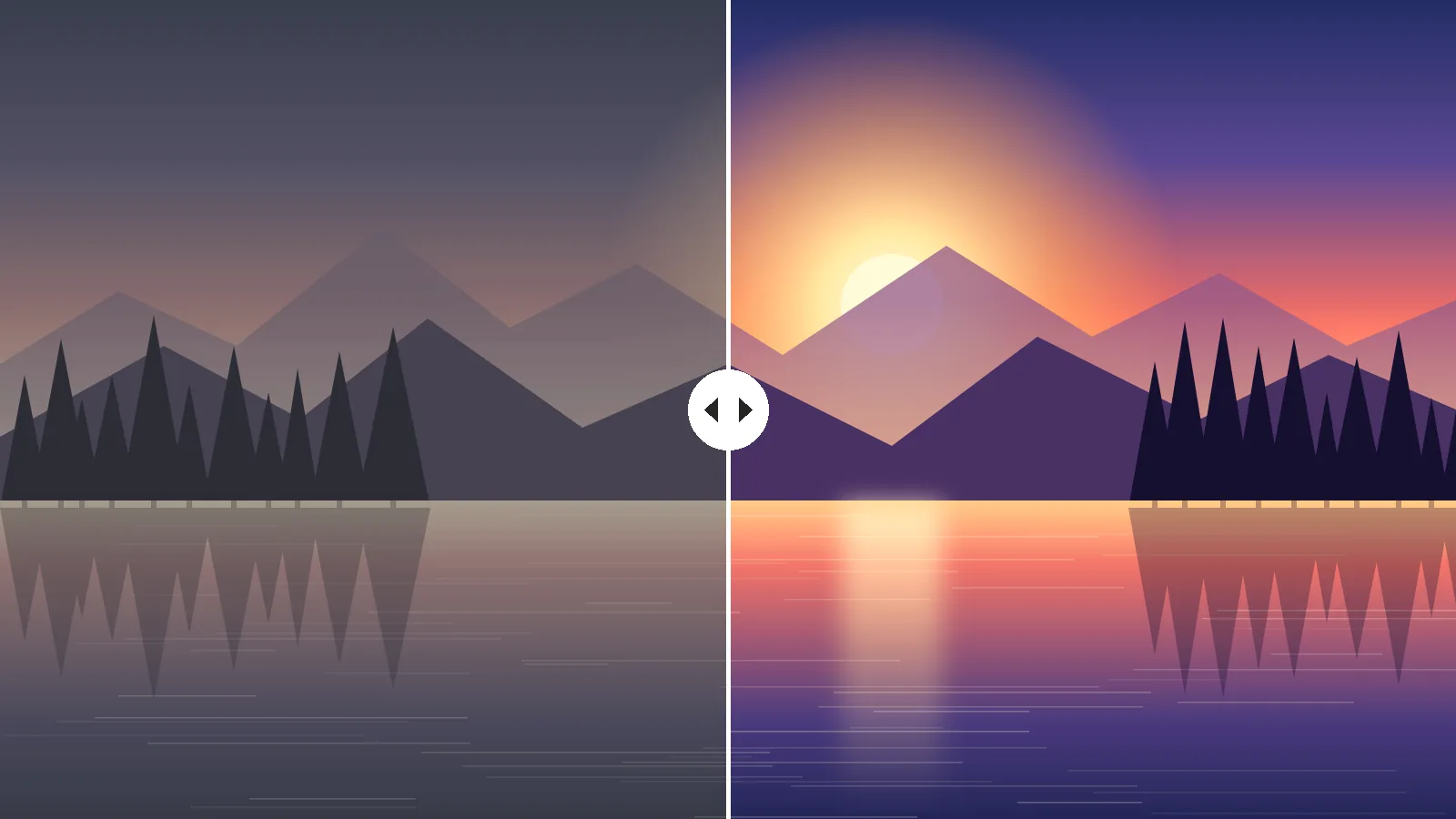
A RAW photo straight from the camera always looks flat and grey. That is normal — the camera keeps all the detail and leaves the look to you. Here is the same sunset before and after my preset:
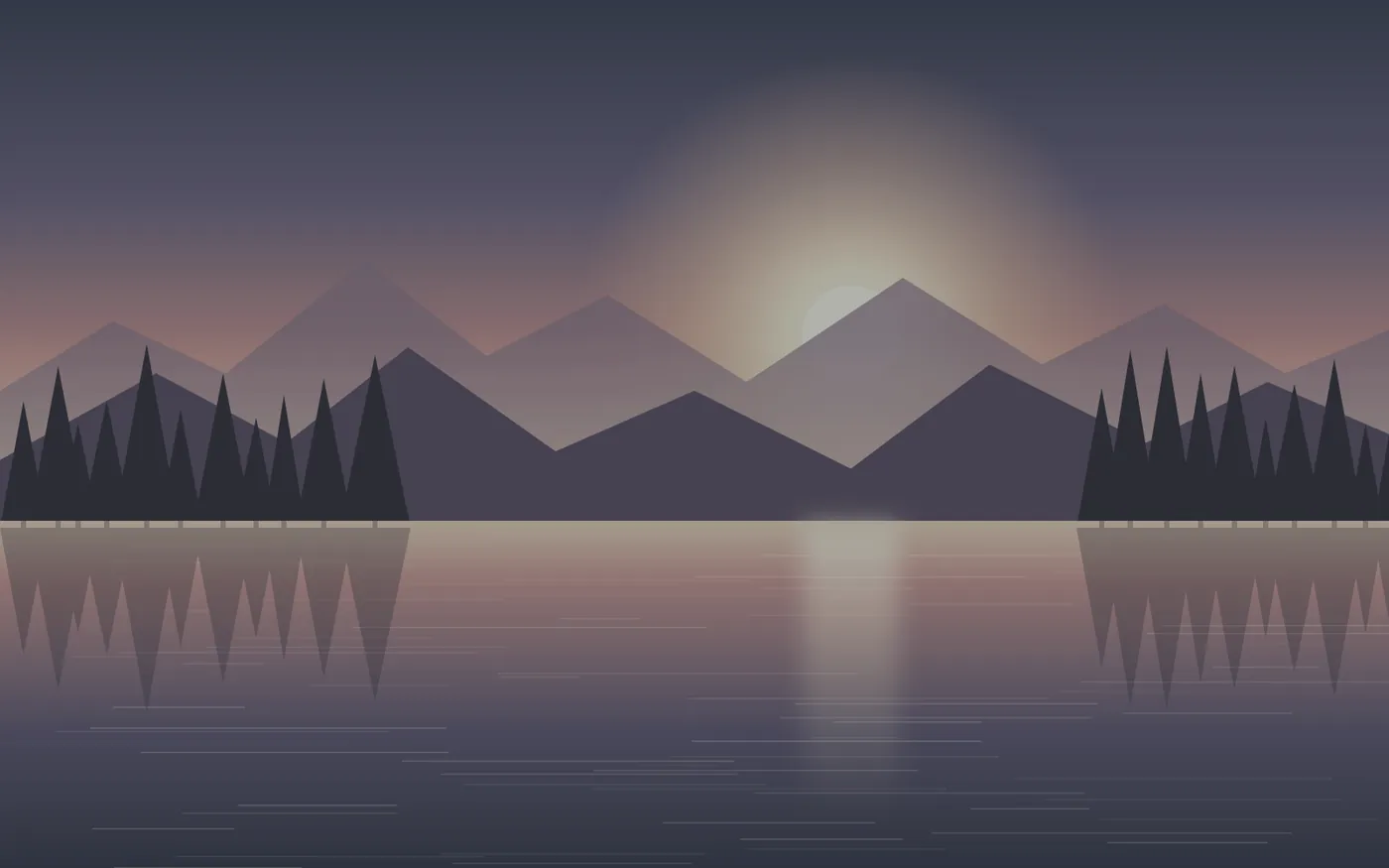
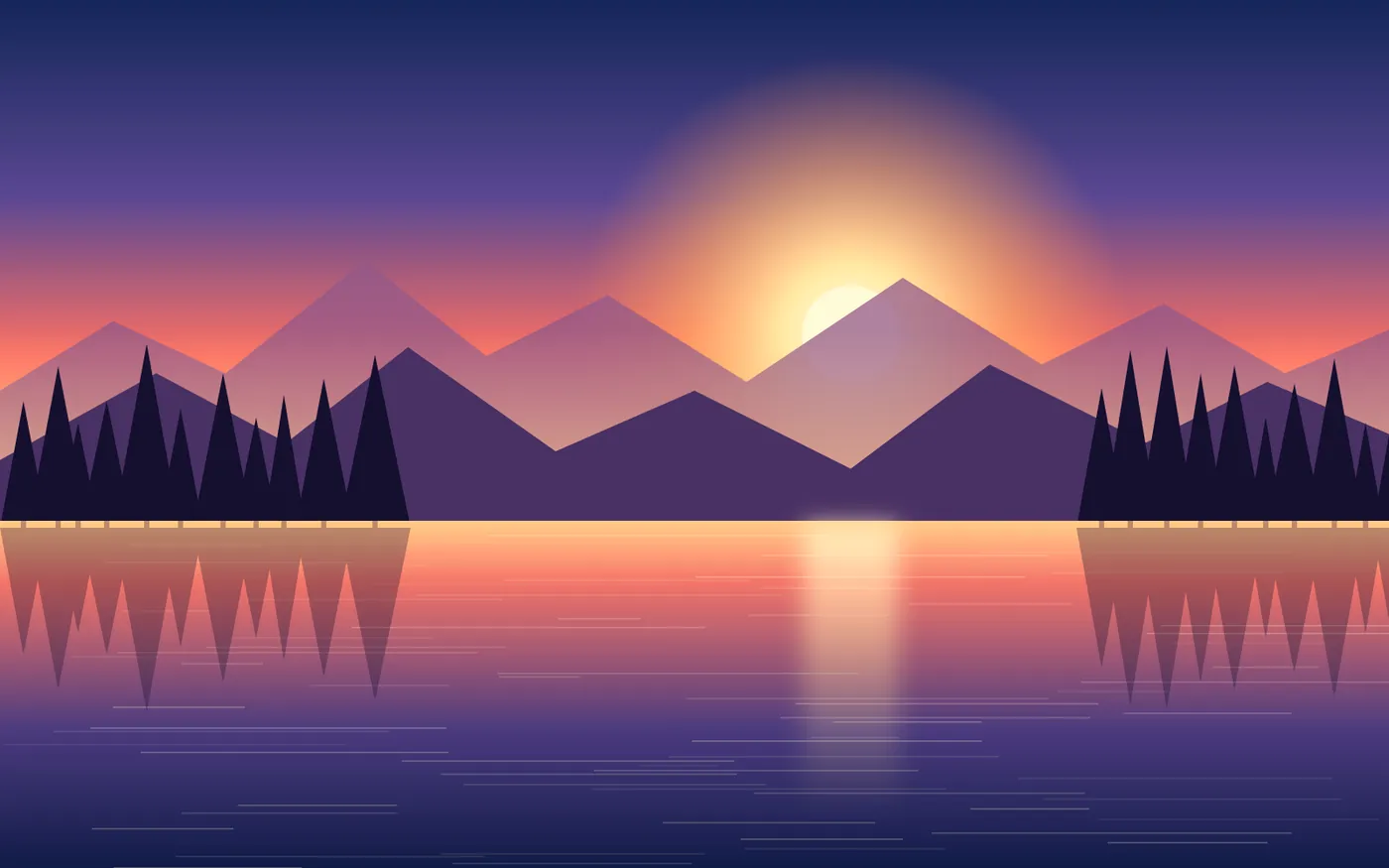
Download the presets (free)ZIP · 12 Lightroom presets · desktop & mobile
What the presets change
- Warmer white balance for golden-hour light
- Lifted shadows and softer highlights
- Richer orange and purple tones, calmer greens
- A gentle S-curve for depth
Watch the full edit

Tip: every photo is different. Apply the preset first, then fine-tune exposure and white balance for your own image.
Comments
1 comment-
Nadia Karim
The before / after slider is so satisfying. Do the presets work in Lightroom Mobile?
Keep reading
More articles

Designing a premium portfolio: typography, color and motion
Why this website uses a bold sans-serif with an italic serif accent, a warm cream palette and small, purposeful animations.
Choun Mia
How I secure a WordPress website — a practical checklist
The exact hardening steps I use on client sites: updates, a firewall, two-factor logins, backups and the server settings most people forget.
Choun Mia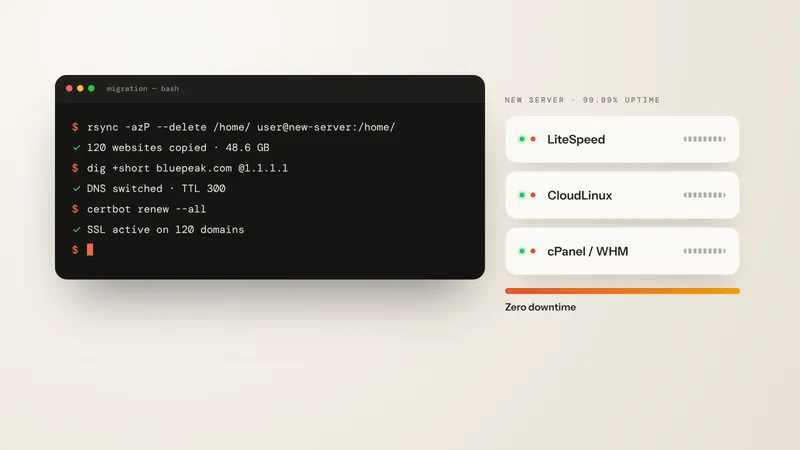
Moving 120 websites to a new server with zero downtime
My step-by-step migration plan — lowering the DNS TTL, syncing files with rsync, switching DNS and checking email, SSL and speed.
Choun Mia